Thursday, May 22, 2014

How to monitor ADF application AM Pool instance and Taskflow Performance using Oracle EM


This blog explains about how to monitor Application Module Instance creation/usage and Taskflow response time using Oracle Enterprise Manager.

- Login to Oracle EM corresponding to where your application deployed
- Expand 'Application Deployments' - > Choose your application - > Right click on your application as shown below


- Choose ADF -> ADF Performance as shown below

- You will see a screen looks like below

Ref : http://docs.oracle.com/cd/E16162_01/admin.1112/e16179/monitor.htm#CHDHAEHB

How to prefix white space in component in ADF ?


Follow below simple trick to prefix a white space just before any content user type in <af:inputText>, You can apply this even to <af:outputText> for some other components as well

set contentStyle =white-space:pre;

What is PS_TXN table in ADF world?


The  PS_TXN Table

The   PS_TXN table stores snapshots of pending changes made to BC4J application module instances. The table manages the B-Tree storage of rows. The snapshot information is stored as an XML document that encodes the unposted changes in an application module instance. Only pending data changes are stored in the snapshot, along with information about the current state of active iterators (i.e. "current row" pointers information). The value of the COLLID column corresponds to the value returned by the   ApplicationModule.passivateState() method.

The  PS_TXN_SEQ Sequence


This sequence is used to assign the next persistent snapshot Id for Application Module pending state management. If the   PS_TXN table contains any rows at the time this sequence is created, the sequence is created so that is   STARTS WITH the integer that is one greater than the   MAX(COLLID) value from the rows in   PS_TXN.

Wednesday, May 21, 2014

How to use HttpWatch to watch Http Trafic


What is HttpWatch ?

HttpWatch integrates with Internet Explorer and Firefox browsers to show you exactly what HTTP traffic is triggered when you access a web page. If you access a site that uses secure HTTPS connections, HttpWatch automatically displays the decrypted form of the network traffic.

This is one of the best tool to measure HTTP Request throughput, Here is the link to download

https://www.httpwatch.com/download/

After successful installation, Open your IE Browser, Right click anywhere on browser and choose 'HttpWatch'. This will open a small window at the bottom of the browser.

To start capturing network traffic, Click on 'Record' button at the beginning of the window as highlighted below and start browsing , you will see how much time it take to get the HTTP response.


Thursday, May 15, 2014

How to Configure JRockit Machine Control with Weblogic Server ?


This blog explains about how to configure JRocket Machine Control with Weblogic Server ?

What is JRockit ?

The Oracle JRockit JVM is the industry's highest performing Java Virtual Machine now built into Oracle Fusion Middleware. It brings industry leading real time infrastructure capabilities with JRockit Real Time and unparalleled JVM diagnostics with JRockit Mission Control.


Follow below link to download and install JRocket

Oracle® JRockit Mission Control

- Configure jmx remote port by modifying setDomainEnv.cmd, startWeblogic.cmd and startManagedWeblogic.cmd file as shown below. You should find these files at Middleware Location

for eg : C:\Oracle\Middleware1116\user_projects\domains\fm_domain\bin

setDomainEnv.cmd

SET JAVA_VENDOR=Oracle
set BEA_JAVA_HOME=C:\Program Files\Java\jrockit-jdk1.6.0_45-R28.2.7-4.1.0
set ENABLE_MNGMNT_CONSOLE=true

startWeblogic.cmd

if "%ENABLE_MNGMNT_CONSOLE%"=="true" (
if "%MNGMNT_CONSOLE_OPTIONS%"=="" (
set MNGMNT_CONSOLE_OPTIONS=-Xmanagement:ssl=false,authenticate=false -Dcom.sun.management.jmxremote.port=7091
)
) else (
set MNGMNT_CONSOLE_OPTIONS=
)


set SAVE_JAVA_OPTIONS=%JAVA_OPTIONS% %MNGMNT_CONSOLE_OPTIONS%

If you want to connect to any specific Managed Server instance using JRocket, then you have to modify startManagedWeblogic.cmd as shown below

startManagedWeblogic.cmd

Configure JMX remote ports repeatedly for each individual managed server instance.

if "%1"=="fm_dev" (
  set MNGMNT_CONSOLE_OPTIONS=-Xmanagement:ssl=false,authenticate=false -Dcom.sun.management.jmxremote.port=7092
) else (
if "%1"=="fm_soa_dev" (
set MNGMNT_CONSOLE_OPTIONS=-Xmanagement:ssl=false,authenticate=false -Dcom.sun.management.jmxremote.port=7093
) else (
set MNGMNT_CONSOLE_OPTIONS=-Xmanagement:ssl=false,authenticate=false -Dcom.sun.management.jmxremote.port=7094
)

)

After updating all these three files, Start Weblogic server by running 'startWeblogic.cmd' script, and you notice JMX remote port in console log as highlighted below
After successful configuration of JMX remote port, start JRockit , Choose 'New Connection' as shown below
- Enter the host name, JMX Remote Port name ( Same as configured above). You don't need to provide any login credentials as we already configured above authentication=false. Test the connection, Ensure Status should be 'OK' as shown below. Click on 'Finish'


After successful connection, Right click on the newly created connection and choose 'Start Console' option

Find source code below here

How to Create Domain, Managed Server using Weblogic Configuration Wizard


This blog explains about simple and basic steps to create domain and managed server instance in Weblogic server using Configuration wizard.

What is Domain ?

A WebLogic Server administration domain is a logically related group of WebLogic Server resources. Domains include a special WebLogic Server instance called the Administration Server, which is the central point from which you configure and manage all resources in the domain. Usually, you configure a domain to include additional WebLogic Server instances called Managed Servers. You deploy Web applications, EJBs, and other resources onto the Managed Servers and use the Administration Server for configuration and management purposes only.
Multiple Managed Servers can be grouped into clusters, which enable you to balance loads and provide failover protection for critical applications, while using a single Administration Server simplifies the management of the Managed Server instances.

- Weblogic Server instance is a Java Virtual Machine(JVM) process that runs the java code- actively working component and responsible for processing client requests.

- Weblogic Server Cluster - Group of Various Managed servers excluding Admin Server - High availability and Load balancing in Production environment.


- Select 'Coniguration Wizard' from Start Menu as shown below
 - Select 'Create a new Weblogic domain'
 - Select appropriate options based on requirement, Leave them default if you don't need any of below mentioned features.
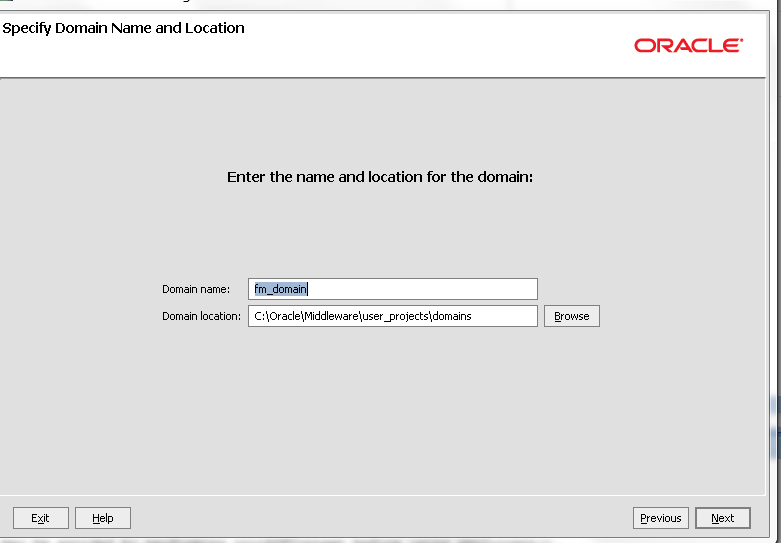
 - Enter valid domain name.
 - Enter Password and Confirmation Password values.
 - Select 'Development Mode' for local use, If you are creating domain for production environment then select other option.
 - Choose 'Manged Servers, Clusters and Machines' selection.
 - Click on 'Add' button and enter valid names for the domain, If you want to have cluster as well, Add Cluster and provide valid name.
 - Select 'Start Admin Server' check box  and hit 'Done', this will start Admin server
 - If you want to start Admin server manually, Then follow below path, run 'StartWeblogic.cmd'

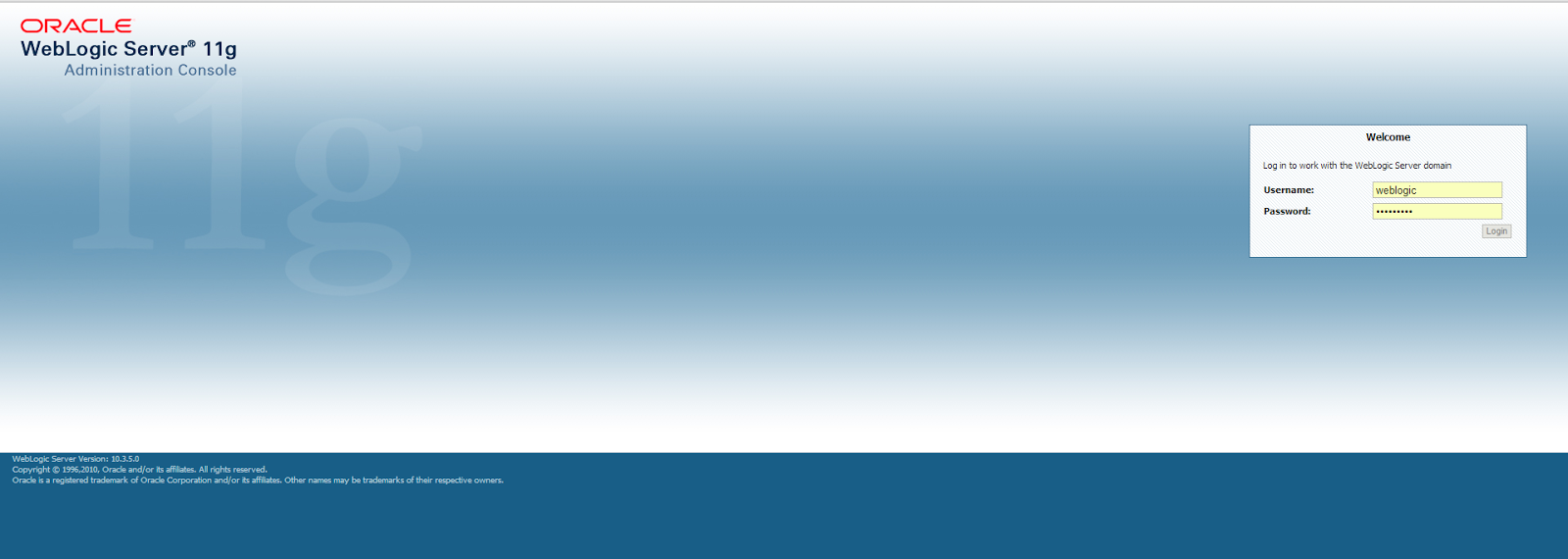
 - Login to Weblogic console

 - Verify the newly created domain as highlighted below.