Tuesday, March 26, 2013

Get the currently selected row in Application Module (AM) in ADF

If there is any table component in the ADF UI , and you want to get the currently selected row in the Application module use the following code snippet

Let the VO name be StockDetailsVO

Steps
1. Get the VO instance
2. Get the currently selected row
3. Get the data from currently selected row

    public void addStocksToPortfolio() {
        // get the VO instance
        StockDetailsVOVOImpl vo = getStockDetailsVO();

        //Get the currently selected row, typecast it to VORowImpl Class type
        StockDetailsVORowImpl currentRow = (StockDetailsVORowImpl)getStockDetailsVO().getCurrentRow();       

         //We get the data as below
        int stockID = currentRow.getStockid();
        String stockName = currentRow.getTimeadded();
}

Sunday, March 24, 2013

Iterate through the vo.executeQuery() results in ADF

Some times we execute a ViewObject (VO) in the ApplicationModule (AM). We want to iterate through the results returned.

The following sample code snippet will do the same

public String autoComplete(){
       StockDetailsVOImpl vo = getStockDetailsVO();   
        vo.executeQuery();
        while (vo.hasNext()) {
            //Type case the returned row to the VORowImpl type
            StockDetailsVORowImpl newRow = (StockDetailsVORowImpl) vo.next();
          
            //use the getter and setter methods of RowImpl Class to get the respective column details
            newRow.getCloumName());
            }
        }

Saturday, March 23, 2013

Execute a ViewObject (VO) query in ApplicationModule (AM)

For example let
  1.  VO name be StockDetailsVO
  2. AM name be StockMarketAM

 If the Java class for the VO is not generated
  • Go to the Java section of the StockDetailsVO and generate the StockDetailsVOImpl.java
  • If you have the Bind Variables, then click the check box Include bind variable accessors
 If the Java class for the AM is not generated
  •  Go to the Java section of the AM and generate the StockMarketAMImpl.java
Use the following code snippet

    public void executeViewObject() {
       StockDetailsVOImpl vo = getStockDetailsVO();
       vo.executeQuery();
   }

If you want to set some Bind Variable value before executing the VO, use the following code

    public void executeViewObject(int portfolioID) {
       StockDetailsVOImpl vo = getStockDetailsVO();
       vo.setBindPortfolioID(portfolioID);
       vo.executeQuery();
    }

Thursday, March 21, 2013

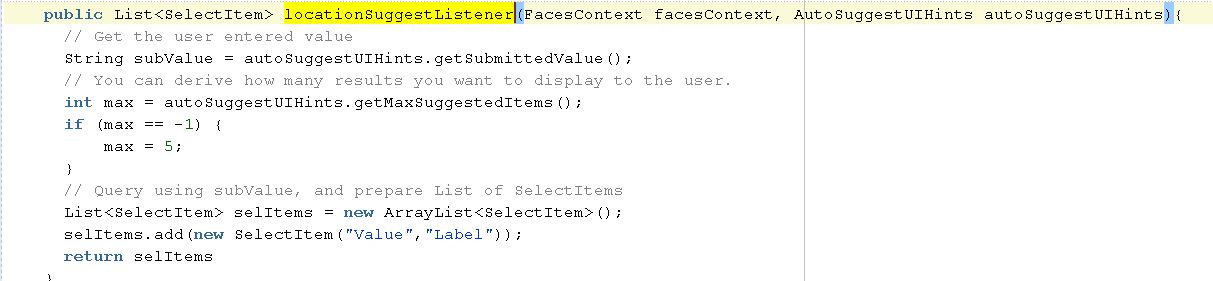
Type ahead / AutoSuggestion


Usecase :  Display list of values automatically while user types / Auto Suggestion

Implementation


Drag autoSuggestBehavior component and binds to Backing bean method


Backing Bean Method :


Sunday, February 24, 2013

How to use af:selectManyChoice> Component in ADF

Usecase :  How to use af:selectManyChoice component.

Implementation

Below is the sample screenshot how this component looks like. User can allowed to select more than one item.


Below is the snippet in Page fragment,  ValueChangeListener method binding is optional. this is one way of getting selected values. <f:selectItems> value can bind to any data source. In this example I have pointed to one Java class that returns list of <SelectItem>'s


This is how we can populate List of SelectItem values, I have configured this class in faces-config.xml, so that every page fragment can access these values.


Below screenshot shows how to get the selected value from <af:selectManyChoice> component by changing value on it. valueChangeEvent.getNewValue() returns selected values in form of java.util.ArrayList<Object>

Note : If you bind <f:selectItems> to List<SelectItems> , You will always get the selected item(s) key value instead of index value.


Saturday, February 23, 2013

Validate Date from Date picker in Backing bean

Subject

Sometimes we might need to validate the date that is obtained from the date picker on the ADF screen in the backing bean.

Use-case: We might need to check if the age of the person is above 20.

Solution

Step 1:  Go to the property inspector for the text field where the date picker is used
Step 2:  Make auto-submit true
Step 3:  Enable ValueChangeListner to point to a method in a managed bean, else create a method as below


Step 4:  Use the following code to do the required validation


    public void validationMethod(ValueChangeEvent valueChangeEvent) {
        try {
            Date enteredDob = (Date)valueChangeEvent.getNewValue();

            Date currentDate = new Date();
            currentDate = (Date)currentDate.getCurrentDate();
            SimpleDateFormat displayDateFormat = new SimpleDateFormat("yyyy");
            String currentYear =
                displayDateFormat.format(currentDate.dateValue());
            String enteredYear = displayDateFormat.format(enteredDob.dateValue());

            if ((Integer.parseInt(currentYear) -
                 Integer.parseInt(enteredYear)) < 18) {
                FacesContext facesContext = FacesContext.getCurrentInstance();
                FacesMessage msg =
                    new FacesMessage(FacesMessage.SEVERITY_ERROR,
                                     "Age must be above 20",
                                     "Age must be above 20");
                facesContext.addMessage(null, msg);
            }
        } catch (Exception nfe) {
            // TODO: Add catch code
            nfe.printStackTrace();
        }
    }
}


Wednesday, February 20, 2013

ADF Shortcuts

Shortcut #- Search for a specific file in a Project
Command - Ctr -(minus) , Type the class name what you are searching for.. It will list you down with all the files matching


Shortcut # - How to identify the project name & package name of a specific file which you have already opened in Jdeveloper
Command : Place the mouse cursor anywhere on the file then choose Alt + Home