Monday, August 26, 2013

How to configure Active Directory Users/Groups in Weblogic Server ?

Usecase : Configure LDAP Active Directory Users and Groups in weblogic console, so that all ADF applications authenticated and authorized using this.


Step1 : Login to weblogic console, select ' Security Realms', Choose 'myrealm' as shown in below screenshot.


Step2: Create a new 'Authentication provider' type of 'ActiveDirectoryAuthenticator' as shown below
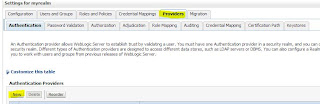


Enter valid name , Select 'Type' as 'ActiveAuthenticationProvider' as shown in below screenshot.   
Step3:  Ensure to reorder newly created authentication provider to the top position in the list as shown below.


Step4: This is very very important step, Provider corresponding values for 'Provider Specific' entries for newly created 'ActiveDirectoryAuthenticator' provider as shown below.


Ensure to give correct LDAP entries for host, port, principal, credential, userBaseDN and groupBaseDN

Step5: Upon successful configuration, restart Admin server and you will see all the groups/users associated go given Principal & UserBase DN values as shown below.


Wednesday, August 21, 2013

ADF Application deployment failure with java.security.PrivilegedActionException


Error

Description: Message icon - Error An error occurred during activation of changes, please see the log for details.
Description: Message icon - Error weblogic.application.ModuleException:
Description: Message icon - Error java.security.PrivilegedActionException: weblogic.common.ResourceException: java.security.PrivilegedActionException: weblogic.common.ResourceException: No credential mapper entry found for password indirection user=apps for data source Connection1

Action Item
Right click on application -> Application properties -> Deployment -> Un check ' Auto generate ...' as shown in below screenshot.


Wednesday, August 14, 2013

How to configure Resource Bundle to Any Project in ADF


This post outlines about configuring specific Resource Bundle to configure to any project.

Right click on the project, Choose Resource Bundle, Choose Bundle Search, select the bundle which you want to configure.


Tuesday, August 13, 2013

Difference between .jsf and .jspx with 11gR1 vs 11gR2


Nice comments from Fank about usage of .jsf (Facelets) going forward with Jdeveloper 11gR2 outlined below


1. JSPX documents and Facelets are bot supported with JDeveloper 11g R2 and we do support them equallly in functionality (very little differences exist on both sides)
2. JSPX documents are the only choice in JDeveloper 11g R1
3. The future speaks Facelets (according to the JSF specification) and if you starting a new development project with JDeveloper 11g R2 then we recommend you use Facelets because of this
4. If you are on JDeveloper 11gR1, don't panic, you are good to go and we make sure your applications upgrade nicely to 11g R2 and 12c (later)
5. We plan on providing a JSPX to Facelets migration in JDeveloper. Until then, JSPX are a first class citizen as Facelets is too
6. When you are on JDeveloper 11gR1, don't wait for 12c if you need to start a development project. 

Monday, August 12, 2013

How to avoid Prompting to Save SQL Worksheet in Jdeveloper


You might have noticed with jdeveloper , whenever execute any queries in SQL Worksheet, it prompts to save sql worksheet whenever you perform 'Save All' In Jdeveloper. If you want to avoid such prompts, make below changes in your Jdeveloper

Tools-> Preferences -> Database -> Worksheet -> Un check 'Prompt for save file on close ' option.


Thursday, August 8, 2013

How to ignore unwanted files while checking into SVN Repository?


If you want to ignore some sort of files for eg : .class files while you are checking source code into SVN repository, Follow below steps


Download and install 'Tortoise SVN' client on your machine, this is one of the best IDE client to connect to SVN Repository.

Step1 : After installation, Right click on the application where you want to configure ignore list,Choose TortoiseSVN->Properties-> Click on 'New' button as shown in below screenshot.

Step2: Chohose 'svn:ignore' option from the drop down list of values, enter all the property values which you want to ignore while you are checking into SVN Repository.
Step3 : Click on 'Ok', Ensure to commit these properties into repository, So that you don't need to configure these properties every time.
                                              OR

Step4: Right click anywhere , Select Tortoise SVN -> Settings , Enter below values for 'Global Ignore Pattern' field

classes */classes output */output *. *-oc4j-app.xml *.log* *.bak *.cdi *.client_contrib *.contrib* *.generated.java *.ignore *.keep *.labellog.emd *.mv* *.rename.* *.rvi *.saved.* *.scc *.sync.* *.unbranch.* *.unco.* *.unmkelem.* .#* .*.cs .ade_path .depprod .depprod_nt .fullsource .fullsource_nt temp external_jars */external_jars deploy */deploy


Note : Tortoise SVN can ignore only Unversioned files..

Wednesday, July 31, 2013

How to deploy/undeploy/redeploy ADF application to respective environment using ANT Script

This post explains about deploy/undeploy/redeploying ADF applications to respective environment weblogic application server using ANT script

ANT script make life easy to deploy various web applications to different environment with minimal changes. Follow below steps to deploy any web application.

Step1 : Generate EAR(Enterprise Archive) file for your application and place at specific location in unix box.

Step2 : Create build.xml as shown below
Step3 : Modify the below build.xml with respect to environment specific
         username, password, hostname,port, admin server name, target,source location

Step3 : Issue below command where your build.xml available
/opt/oraaip/oltd72/oracle/middleware/modules/org.apache.ant_1.7.1/bin/ant -file build.xml undeploy deploy